Tim Hortons App Guide to Download, Set Up, Order and Fix Problems
The Tim Hortons app puts your coffee order, your rewards points and your offers in one place, and it takes about ten minutes to set up. This guide walks you through each part: download, account, sign-in, scanning, mobile ordering and the fixes that work when the app stops working.
Most app trouble comes from three small things: the wrong region at sign-up, an offer that was never activated, or an old version of the app. Each one has a quick fix, and this guide names the exact button to tap, so you can check your own screen as you go.
Give it ten minutes and a steady connection. By the end you will have an account, points collecting on every visit, and a mobile order ready before you reach the counter.
The steps below follow the official Tim Hortons Help Centre, checked 11 November 2026, so the button names match the app on your phone today.
- A phone with Wi-Fi or mobile data: an iPhone running iOS 16.4 or later, or an Android phone.
- An email address you can open on that phone.
- A payment card if you want to pay in the app, and your Triangle Rewards account if you want to link it.
- Download the Tim Hortons app on iPhone or Android
- Create your Tims Rewards account
- Sign in with the email code
- Scan your app to earn Tims Rewards points
- Order ahead for pickup or delivery
- Activate offers and link Triangle Rewards
- Fix the app when it stops working
Shortlist: download · join · sign in · scan · order ahead · offers · fix it
Download the Tim Hortons App on iPhone or Android
Open the App Store on an iPhone or Google Play on an Android phone, then search for Tim Hortons and tap the result from The TDL Group Corp. Tap Get or Install and wait for the download to finish. The app is free, and the current iPhone version is 7.29.1, updated 10 November 2026.
Check the region before you download. The Canadian and US versions run on separate regions, and the wrong one will show the wrong menu and offers. If your store region is set to Canada, the menu and prices will match the restaurant near you.
Create Your Tims Rewards Account
Open the app and tap Join now. Type your first name and your email address, pick your language and region, and fill in the other details the screen asks for. Tap Create an account and the app will send a one-time password to your email.
Open that email on your phone and follow the code it gives you. That step links the account to your email, and it is also how the app checks it is really you if you sign in on a new phone later.
Sign In With the Email Code
Open the app and tap Sign in. Type the email address you used to create your account, then watch for the login code the app sends to that inbox. Type the code into the app and you are in. There is no password to remember for the Tims app itself.
No code in your inbox? Check the junk or spam folder first, then ask for a fresh code. If it still does not arrive, tap Account, App and Privacy in the app and pick Sign-in Code Doesn’t Work to reach Guest Care.
Scan Your App to Earn Tims Rewards Points
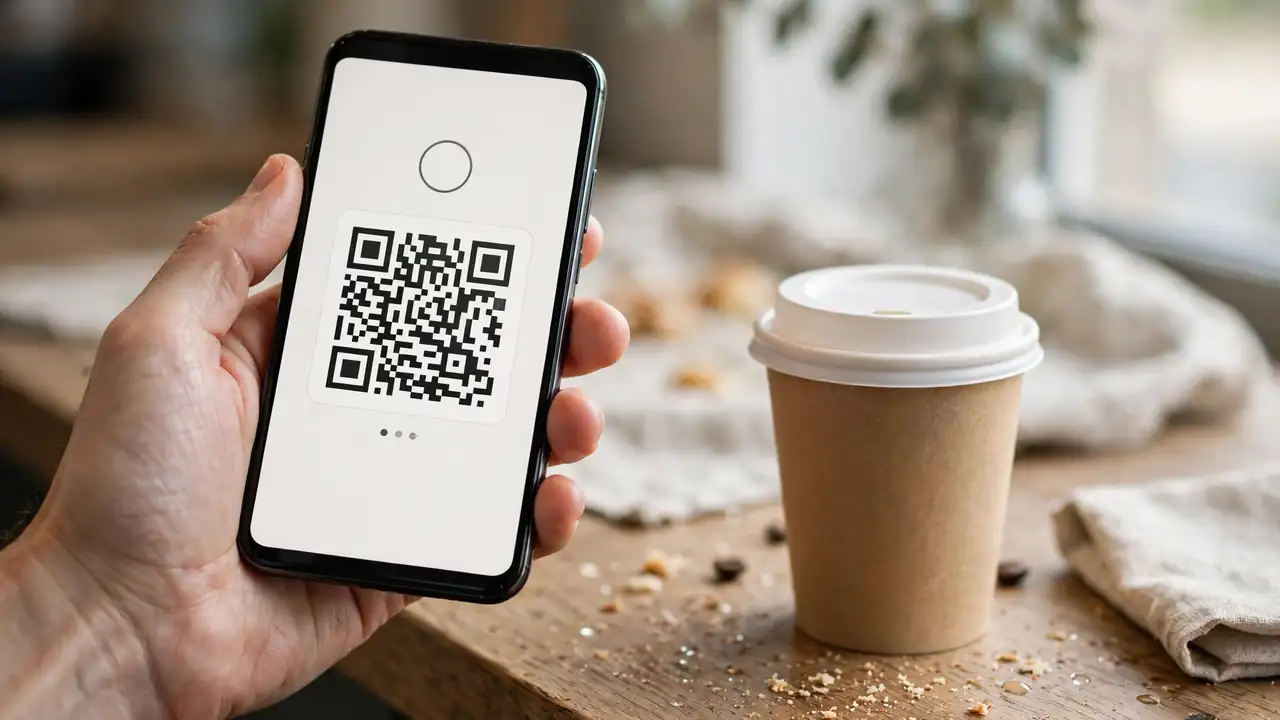
Tap Scan in the centre of the bottom bar before you pay. The Scan tab shows your Tims Rewards QR code: hold it under the till scanner and the points land on your account. Every eligible dollar earns 10 points, and the program passed 7 million active members in February 2026.
Scan before the payment goes through, because a code shown after payment will not add points to that order. If you pay with a Tim Card, you can load it in the app too: our how to use a Tim Hortons gift card walks through the card steps.
Use Scan and Pay at the till to pay and earn points in one scan, instead of handling payment and rewards as two separate steps.
Order Ahead for Pickup or Delivery
Tap the Order tile, pick your restaurant, then tap the red Order button. Open a menu category, pick an item, change it to taste, and tap the red Add button at the bottom. Add everything you want, tap Review order, and finish checkout.
For pickup, look for the Mobile Pickup sign inside the restaurant. Staying in? Pick delivery instead and the order comes to your door. Check the what to order at Tim Hortons first if you want a shortlist of first picks.

Activate Offers and Link Triangle Rewards
Open the offers tab before you order and tap Activate on each deal you want. An offer that sits unactivated will not apply at checkout, even if the item is in your basket. Deals are personal to your account and they run out, so check the expiry date on each one.
Since 2 September 2026 you can link Tims Rewards with Canadian Tire Triangle Rewards at triangle.com/timsrewards and earn up to 5% back in Canadian Tire Money on eligible Tims purchases, on top of your Tims points. Read the Money.ca guide to the Triangle Rewards link for the earn rates.
If every restaurant says “CA only” or “US only” when you try a mobile order, your account region does not match the country you are ordering in. Check the language and region in your account settings before you order again.
Fix the App When It Stops Working
Start with the quick checks. Update the app in the App Store or Google Play, because the Help Centre advice is that an old version may no longer be supported. Then close the app, reopen it, and check your connection: the app needs Wi-Fi or mobile data for ordering and scanning.
Still stuck? Sign out, then sign back in with a new email code. Check the Tim Hortons hours guide to confirm the restaurant is open, since a closed store can look like an app fault. If the trouble stays, contact Guest Care through the Tim Hortons Help Centre and describe it.
| App will not open or keeps crashing | Update to the latest version in your store, close the app and reopen it. If it still crashes, delete the app and install it again, then sign in with a fresh email code. |
| No login code arrives | Check the junk or spam folder, then ask for a fresh code. Check the email address is the one on your account. If it still does not arrive, use Account, App and Privacy, then Sign-in Code Doesn’t Work, to reach Guest Care. |
| Points did not appear after a visit | The code must be scanned before you pay. A scan after payment will not add points to that order. Keep the receipt and contact Guest Care through the app if points are missing. |
| Mobile order will not go through | Check you are on the latest app version and that your account region matches the country you are ordering in. If it still fails, use Mobile, Delivery and Tims Catering Orders, then I cannot place an order, in the Help Centre. |
| Offer did not apply | Offers must be activated before you order. Open the offer, tap Activate, then place the order before the expiry shown on the offer. |
| Wrong menu or prices | Check the region in your account settings. A Canada account shows the Canada menu, and a US account shows the US menu. |
Is the Tim Hortons app free?
Yes. Download it free from the App Store or Google Play. You pay only for what you order, and Tims Rewards costs nothing to join.
Do I need the app to earn Tims Rewards points?
No. You can scan a physical Tims Rewards card at the till instead, but the app holds your digital card, your offers and your mobile orders in one place.
Why is my Tim Hortons app not working?
The usual causes are an old app version, no connection, or the wrong account region. Update the app, check your connection, and sign out and back in with a fresh email code. The troubleshooting table above covers each fault in turn.
Can I use the Tim Hortons app in the US?
Yes, but the Canada and US apps run on separate regions. Set the region to the country you are ordering in, or mobile ordering may say restaurants are for the other region only.
How do I log out of the Tim Hortons app?
Open your account area in the app and use the sign-out option there. Signing out does not delete your account: sign back in with your email and a fresh login code.
Is there a new Tim Hortons app?
The app got a new look in May 2026 with version 7.1.543 and keeps getting updates: the current iPhone version is 7.29.1. If your app looks old, update it in your store.
| Download | App Store or Google Play, search Tim Hortons, free, iOS 16.4 or later |
| Join | Join now, first name and email, then the one-time password from your email |
| Sign in | Sign in, email address, login code from your inbox, no password |
| Scan and earn | Scan tab, centre of the bottom bar, before you pay, 10 points per dollar |
| Mobile order | Order tile, pick a restaurant, red Order button, Review order, checkout |
| Offers | Activate each offer before you order, check the expiry date |
| Triangle link | Live 2 Sep 2026, triangle.com/timsrewards, up to 5% back on top of Tims points |
| Fix it fast | Update the app, check your connection, sign out and back in, then Guest Care |
That is the Tim Hortons app in about ten minutes: downloaded, signed in, scanning for points, and ready to order ahead. The fixes above cover the faults most people hit, so keep this guide open the first time you use it.
Next time you are in line, scan first and pay second. Your points will thank you at the next free coffee.
Save this pin for your next Tim Hortons run, and share it with a friend whose app keeps logging them out.
This is an independent fan blog and is not affiliated with, endorsed by, or connected to Tim Hortons.